Explainer | 24 October 2026. If you own a gaming PC, you’ve probably seen the headlines: PlayStation games are coming to Steam, PS5 games can be streamed to a laptop, and developers are experimenting with PS5 emulation. It’s easy to reach the wrong conclusion—that a PC can now simply run any PS5 game.
The short answer: yes, you can play some PlayStation games on a PC, but not every PS5 game, and not all in the same way. There are three very different routes: buy a native PC version, stream a game from a PS5 you already own using PS Remote Play, or—only in supported countries—use a PlayStation Plus cloud-streaming service. For Australians, that third option is a major catch.
Sony’s own PC games FAQ, Remote Play guide and Australian PlayStation Plus plans make the distinction clear, although the information is scattered across different pages. Here is what matters before you buy anything.
Three ways to play PlayStation games on a PC
| Method | Do you need a PS5? | Does the PC run the game? | Available in Australia? |
|---|---|---|---|
| Native PC version via Steam or Epic | No | Yes, installed on your PC | Yes, for released PC titles |
| PS Remote Play | Yes, or a compatible PS4 for PS4 games | No, your console runs it | Yes |
| PlayStation Plus cloud streaming on PC | Not necessarily, where offered | No, a remote server runs it | Not offered through Australian PS Plus Deluxe |
This table is the most important part of the story. A game running on your computer and a game being displayed through your computer are two very different things.
Option 1: Play the official PC version — the simplest choice
Sony has brought a growing number of PlayStation Studios titles to Windows PC. Games such as God of War, Marvel’s Spider-Man Remastered, Horizon Forbidden West Complete Edition, Ghost of Tsushima Director’s Cut, The Last of Us Part I, The Last of Us Part II Remastered and Helldivers 2 illustrate the expanding catalogue. Availability, PC system requirements and online account requirements vary by title.
For these releases, your computer does the work. You install the Windows version from a legitimate store such as Steam or Epic Games Store. You do not need a PS5 running in another room. Your frame rate, resolution and graphics settings depend on the PC version and your hardware.
There is a catch that deserves more attention: buying a PlayStation game on PS5 generally does not give you the PC version for free. Sony explicitly describes the PC and console versions as separate products. If you own God of War on PlayStation, don’t assume you can sign into Steam and download it without paying again. Check for a specific cross-buy promotion or entitlement before purchasing; none should be assumed.
The same caution applies to saved games. Sony says console and PC save transfers are not generally supported for PlayStation Studios titles. Individual games may offer their own account-linked features, so check the specific game’s documentation instead of relying on a blanket promise of cross-progression.
What sort of PC do you need?
There is no universal specification for “PS5 games on PC”. A PC release is its own piece of software, and the minimum and recommended specifications differ widely. A modest laptop might handle an older title at low settings, while a demanding recent release may require a dedicated graphics card, substantial storage and modern processor.
Before purchasing, check the game’s Windows system requirements, free storage space, graphics-memory requirements and controller support on its official store page. If your PC falls below the minimum, owning a PlayStation controller will not solve the performance problem.
Option 2: PS Remote Play — use your laptop as a screen for your console
Remote Play is useful, but the name is literal: you are controlling a PlayStation remotely. The game still runs on your PS5, and the console sends compressed video and audio to your computer over a network. Your controller inputs travel back to the console.
That makes it attractive if the household television is occupied, you want to play from another room or you are travelling with a laptop. It also means Remote Play does not turn a PC into a PS5. You still need the console, an accessible game and a reliable connection.
How to set up PS Remote Play on Windows
- On your PS5: Go to Settings → System → Remote Play and enable Remote Play. Update the console to the latest system software.
- For access while the console is resting: In Settings → System → Power Saving → Features Available in Rest Mode, enable staying connected to the internet and allowing the PS5 to turn on from the network.
- On your PC: Download Sony’s official PS Remote Play application. Sign in with the same PlayStation account used on the console.
- Connect a supported controller: Sony lists DualSense, DualSense Edge and DualShock 4 controllers. A USB cable is the straightforward documented option for PC setup.
- Choose PS5 in the app: The app searches for the console associated with your account. If it cannot find it, use the manual pairing option from the console’s Remote Play settings.
- Test locally before travelling: Start a game while both devices are on your home network. Then test from a different network if you intend to use Remote Play away from home.
Sony’s official Windows requirements include Windows 10 (64-bit) or Windows 11, a seventh-generation Intel Core processor or later, 2GB of RAM, at least 100MB of storage and a display of at least 1024 × 768. Those are app requirements, not specifications for running native PC ports.
Will Remote Play lag?
It can. Your experience depends on the console’s upload connection, your computer’s download connection, Wi-Fi congestion, network latency and the game you’re playing. Sony specifies at least 5Mbps upload and download and recommends at least 15Mbps for better performance. Those figures are connection guidance, not a guarantee of low latency.
For story-driven games, a small delay may be tolerable. In competitive shooters, fighting games and rhythm games, added latency can matter. Connecting the PS5 to your router via Ethernet and using a stable network for the PC is a sensible first troubleshooting step.
Remote Play can also consume substantial data when used outside your home. Check your internet plan and connection quality before assuming it will behave like a locally installed game.
Option 3: PlayStation Plus cloud gaming — the Australian catch
This is where many international guides become misleading for Australian readers. Articles written for the United States or United Kingdom may describe PlayStation Plus Premium streaming a catalogue of games to a PC without the player owning a console. But Australia has PlayStation Plus Deluxe, not the same Premium cloud-streaming offering.
As of 24 October 2026, Sony’s Australian plan comparison lists Deluxe benefits including the Game Catalogue, Classics Catalogue and game trials, but not the PC cloud-streaming benefit. Sony’s supported-country list for its PS5 cloud-streaming service does not include Australia.
That distinction matters before paying for an expensive subscription. Buying PlayStation Plus Deluxe in Australia will not unlock a library of PS5 games you can stream directly to a Windows laptop. Its catalogue access is principally a console experience, subject to each game’s terms and availability.
Could Sony expand cloud streaming to Australia? Possibly. But there is no basis to treat an unannounced local launch as an existing feature. Check the current Australian PlayStation Plus benefits before subscribing, particularly if PC play is your main reason.
What about the “PS5 emulator” headlines?
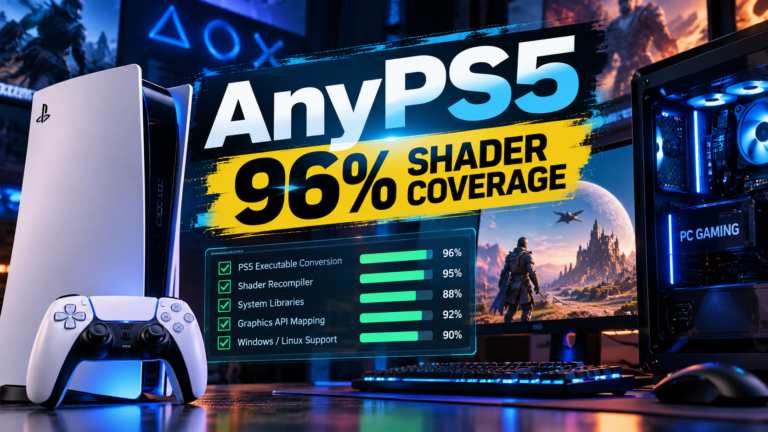
Our earlier story, “AnyPS5 Hits 96% Shader Coverage: Can PS5 Games Finally Run on PC?”, attracted more attention than almost any other recent Tech Boom article. It’s understandable: the idea of running the entire PlayStation catalogue on a gaming PC is compelling.
But a technical milestone such as shader translation coverage is not the same as a verified, stable, playable game. A modern console emulator would need to reproduce far more than graphics instructions: system services, memory behaviour, graphics APIs, audio, input, timing and numerous game-specific assumptions all matter.
In practical terms, don’t buy a gaming PC today on the assumption that it will reliably run arbitrary PS5-only games through an emulator. Be wary of websites advertising “one-click PS5 emulators”, especially those demanding payment, unusual permissions or downloads from anonymous mirrors. Claims should be checked against independently documented gameplay and the project’s actual capabilities.
Emulation software itself and the rights to copy firmware or games are separate legal questions; rules depend on the jurisdiction and the materials involved. This article is not a guide to downloading copyrighted games or bypassing protections.
Do you need a DualSense controller on PC?
Not necessarily. Many native PC versions support mouse and keyboard, as well as multiple controllers. Sony says PlayStation Studios PC games support a range of inputs, but the details vary by game.
A DualSense can connect to Windows by USB-C or Bluetooth. However, don’t assume that adaptive triggers and haptic feedback will work wirelessly in every game. Sony notes that haptic feedback on PC requires a USB connection and support from the game, while adaptive triggers depend on title support. Sony’s DualSense PC compatibility guide is the best starting point.
For shoppers, this is a useful way to avoid an unnecessary purchase. If you already have a compatible Xbox or third-party PC controller, check the game’s store page before spending money on a DualSense. Conversely, if a particular PlayStation PC release advertises DualSense-specific features you care about, a wired DualSense may be worthwhile.
What should an Australian player actually do?
| Your situation | Best starting point | What to avoid |
|---|---|---|
| I own a gaming PC but no PS5 | Look for an official Windows release on Steam or Epic | Assuming all PS5 exclusives have PC versions |
| I already own a PS5 and a laptop | Try the free PS Remote Play app | Expecting zero latency or offline play |
| I want to play PS5 games on a PC without a console | Buy native PC releases where available | Subscribing to Australian PS Plus Deluxe expecting PC cloud streaming |
| I already bought the PS5 version of a game | Check the PC store’s purchase terms separately | Assuming cross-buy or save transfers |
| I saw a PS5 emulator video | Look for independent evidence of stable, playable titles | Installing unverified downloads |
Frequently asked questions
Can I put a PS5 game disc into my PC?
No. A standard Windows computer cannot simply install and run a PS5 game from its console disc. The disc does not contain a conventional Windows release. Look for a separately released PC version.
Can I use Remote Play without owning a PS5?
No. Remote Play requires access to a compatible PS5 or PS4 console. It is not Sony’s cloud gaming service.
Can I play PS5 games on a Mac?
You can use PS Remote Play on a compatible Mac to control your console. The official PC ports discussed here are Windows releases; do not assume a native macOS edition exists unless the publisher lists one.
Does PlayStation Plus Deluxe in Australia let me stream PS5 games to PC?
No. Australian Deluxe does not include the PC cloud-streaming benefit offered through Premium in certain other markets. Check Sony’s Australian plan comparison for the current benefits.
Do I have to buy the same game twice?
If you want both the console edition and a separate PC edition of a PlayStation Studios game, generally yes. Specific promotions or title-level exceptions should be checked individually.
The Tech Boom verdict
Here’s what the marketing and headlines often obscure: “PlayStation games on PC” is not one product or one promise. A native port is a Windows game. Remote Play is a video stream from a console you own. Cloud gaming is a subscription service with country restrictions. Emulation research is not the same as a reliable consumer solution.
For Australian readers, the most practical route is straightforward. If a game has an official PC release, buy that version and check its system requirements. If you already have a PS5, try Remote Play before purchasing extra hardware. And if you are considering PlayStation Plus specifically to stream games to a PC, check the Australian terms first—Deluxe is not the same as overseas Premium.
The exciting part is that PlayStation’s presence on PC is real and growing. The less exciting part is that a Windows gaming rig still cannot replace every function of a PS5. Understanding the difference could save you a subscription, a duplicate game purchase or a disappointing download.
Sources and methodology
- PlayStation — official PC game catalogue and FAQ (PC purchases, controllers and save data)
- PlayStation Support — Remote Play on PC and Mac (requirements and setup)
- PlayStation Australia — Plus plans and benefits
- PlayStation — cloud streaming supported regions
- PlayStation Australia — DualSense controller on PC
Editorial disclosure: This independent explainer is based on official Sony documentation and publicly available product information checked on 24 October 2026. It is not presented as a hands-on benchmark or as proof of any emulator’s performance. No affiliate links or paid recommendations are included.
Featured photograph: Fábio Magalhães / Unsplash. Illustrative gaming setup; not a product demonstration.